Monday, 10 February 2014

12 Tips & Tricks To Increase Battery Life Of Your Android Smartphone...

Make your Android phone's battery last longer


Improve your Android phone's battery life with these tips


Battery life is one of the biggest issues in the Android world today. Take your SIM card out, turn off Wi-Fi and never touch it and it'll sit there happily, lasting for a whole week on one charge. But try to use it for anything "smart" and, well, that's where the problems start.


The 5 Main Culprits For Battery Drainage
  1. Screen Brightness 
  2. Location Services
  3. WiFi
  4. Sync
  5. Widgets Running In The Background
Here are some easy, not-too-compromising methods of boosting your Android phone's battery life.

1. Set a rigid bedtime

Some of today's phones feature automation tools, which let you, say, turn off the mobile signal and Wi-Fi after a certain time. Putting your phone in this sort of induced coma will save power, so if your phone doesn't support scheduled activities, install a management app like Tasker and turn off all non-essential stuff over night. Or stick it in airplane mode yourself. You'll sleep better, too.

2. Deactivate Wi-Fi when not needed

If your phone's constantly sniffing out and trying to connect to every Wi-Fi signal in the area like a robot dog on heat, you're wasting power. Switch off Wi-Fi when out and about or when you know you're not going to be needing it. A Home screen toggle will make this easy. Think of it as something boring but essential you have to do, like always putting your seat belt on.

3. Upload and sync only on Wi-Fi

If you're a keen Dropbox user or rely heavily on music syncing services, you'll benefit greatly from only doing your uploading through Wi-Fi. It's vastly quicker, which means less connectivity time for your phone and less strain on the battered old lithium reserves.


4. Uninstall unnecessary apps

You can never be too sure what's running itself in the background, what with all the multi-tasking, self-uploading, auto-replicating features in today's modern Android apps, so at least minimise the chances of something randomly hoovering up all your battery by constantly trying to connect to some non-existent server, by deleting any unused or old apps.


5. Use push notifications if possible

Android's built-in email application is great and stylish and everything, but having it poll for messages every 15 minutes isn't the best for your battery. If your mail provider offers push notification support use it - the excellent standalone Hotmail app does, for example, which will help lessen power drain a little.

6. Check yourself

Apps like Battery Doctor will give you a much better indication of what's literally eating away at your phone's battery over time than Android's own limited battery life checker, which could help finger something that's the key culprit in draining power. And if you can live without it, bin it.


7. Install a brightness toggle widget

Set your phone to its minimum possible brightness by default, as it's your display that's by far the biggest user of power. Then stick a big brightness high/low toggle widget on the home screen, in a place you can find it without being able to see it (like when using your now ultra-gloomy phone outside). Then only max the brightness when you need to. It might help, and even the automatic brightness option uses a marginal amount of power, as the light sensor needs to... sense light.


8. Dump the widgets

Yes, widgets are a key part of Android, and we're trying to keep this guide practical and not simply tell you to nuke everything, but do you really need a constantly updating Facebook widget on a Home screen? It's just full of boring people's boring baby photos these days anyway, and updating widget content puts a constant strain on your battery throughout the day, even if you just activate your phone for a few seconds to check a text message.

9. Remove haptic feedback

Surely your brain's had enough practise using touch devices that it knows if you've pressed something or not by now? If so, turn off all the haptic feedback options. These little bumps and grinds use power each time you press a key, so try to get used to life without physical feedback.

10. Switch off GPS

Unless you're one of those people who's still using Foursquare to tell the world about it every time you go out to the shop to buy a packet of crisps, there's little reason to have GPS constantly active on your phone. Turn it on when you need it, and use the option to have your phone detect your location through the wi-fi connection. Wi-fi location is usually close enough an approximation for most apps. And if they do need GPS, they're clever enough to tell you anyway.


11. Put your phone on the windowsill...

A strong connection to your phone network requires less power to maintain, so the technical people tell us. So instead of keeping it in your pocket, stick it somewhere and point it in the right direction so you see the maximum number of connection strength bars. Simply flipping your phone 45 degrees on your desk might actually make the battery last longer.

12. ...and keep it cool

Batteries work best in cooler temperatures, with prolonged warm periods gradually lowering their efficiency over time. Putting your phone in a looser pocket might help, or perhaps just gently fanning it while it charges. That might not be the best use of your working day, but at least you'll still be able to get on Twitter on the train home.


Read More

5 Best Android Apps For Photography


I've rounded up 5 new photography apps for capturing photos, editing images and sharing photos with friends and family.

1. VSCO Cam


VSCO Cam is a popular photography app that was originally released for iOS, and after gaining a following, VSCO Cam is now available for Android. With VSCO Cam for Android, users can apply photo-editing basics like contrast, color temperature, and option to rotate photos. Users can import high resolution photos, browse stunning preset packs, and organize favorite photos with the quick filter navigation. When you're done editing your photos, share them with your friends on social networking sites. You can download VSCO Cam Android app from the Google Play Store here.
Get it on Google Play


2. Flipagram


Flipagram is a photography app developed by Cheerful, Inc. Flipagram gives users the ability to create short video stories using images from Gallery photo and Instagram. The app even gives users the option to add their favorite soundtrack. short videos on YouTube, Instagram, Facebook, and more. You can download Flipagram Android app from the Google Play Store here.
Get it on Google Play


3. A Beautiful Mess


A Beautiful Mess is a photo & video app created by Red Velvet Art LLC. Similar to AfterLight, users can take or upload photos, and add filters, borders, text, doodles and phrases like “adventure,” “enjoy,” “fancy,” and “happy day,” etc. Have fun getting creative and adding word bubbles to images of you and your friends. You can purchase A Beautiful Mess Android app from the Google Play Store here.
Get it on Google Play


4. Moment.me


Moment.me is a photography app developed by Moment.me. Moment.me allows users to combine photos, video, and updates from social networking sites like Facebook, Twitter, Instagram and Google +, all into one album. Moment.me lets users take control over their albums. Users can edit their albums, invite friends to contribute, upload photos, and apply photo filters. Moment.me is the best way to capture your favorite moments. You can download Momement.me Android app from the Google Play Store here.
Get it on Google Play


5. Camera Awesome


Camera Awesome is a photography app developed by SmugMug Inc. Camera Awesome packs in tons of features including HDR mode, Panorma modes, and anti-shake video image stabilization. Users can ake advantage of all the editing tools like filters, textures and frames. Share your favorite photos on Facebook, Twitter, Google+, Instagram, Photobucket, Tumblr, and more. You can download Camera Awesome Android app from the Google Play Store here.
Read More

Sunday, 9 February 2014

How to download Facebook videos to your computer online- Step by step


1. Play your Facebook video and copy the link from the browser.


Download facebook video step 1


2. Now go to downvids.net paste your link in the given space, select video quality & format and then Press “Download” or Right click.

Check the box “Download in HD Quality” if you want to download video in highest possible quality.


How to download facebook video step 2


3. Your file will start downloading. Give it some time to download, which depends upon the file size.
Tips
If you want to download multiple videos, refresh your downvid.net’s page after you download one video.

Share this tutorial with your family and friends. Ask anything in comment.

You just learned about How to download Facebook video to your computer online.

For more valuable stuff, visit HackTechTips.
Read More

10 years of Facebook in one graphic.....


If you're on Facebook, a new video about your life went live online Tuesday (04 Feb 2014).

Yes, you. And you, and you and you.

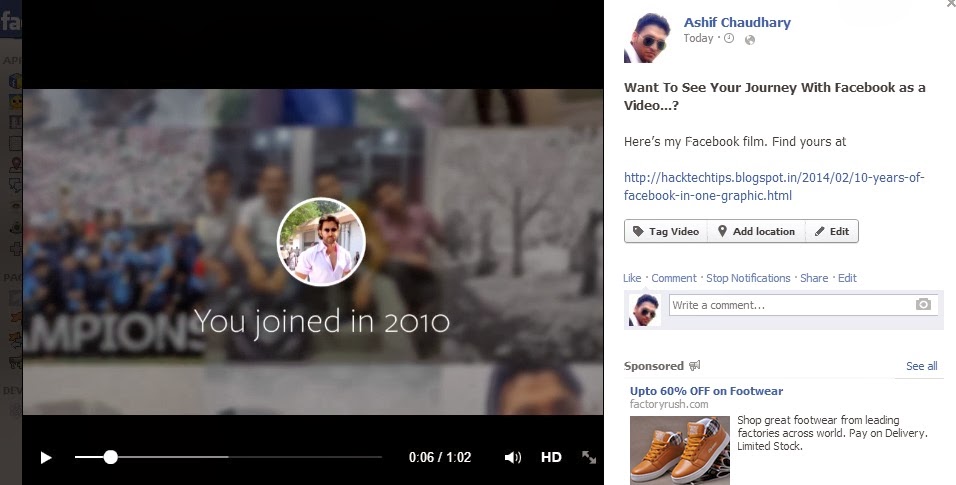
With the help of an automated tool, Facebook has created short, personalized video highlights for "hundreds of millions" of its users. The 62-second clip notes the year you joined Facebook, then shows a handful of your most-liked posts and a seemingly random selection of your photos -- all set to instrumental music.

To see yours, go to Facebook/lookback and admire, or cringe.

Facebook celebrates 10 years

Facebook posted the clips, titled "A Look Back," without fanfare Tuesday to commemorate the 10th anniversary of the social network, which was founded by Mark Zuckerberg and four classmates at Harvard University on February 4, 2004.

"People often ask if I always knew that Facebook would become what it is today. No way," wrote Zuckerberg, the company's CEO, in a Facebook post Tuesday.

"I remember getting pizza with my friends one night in college shortly after opening Facebook. I told them I was excited to help connect our school community, but one day someone needed to connect the whole world."

You may also like this : How To Download Facebook Videos To Your Computer Step By Step


Read More

Android + Windows 8.1 Transformable Laptop-Tablet


Windows 8 has been running decently until now and Asus plans to change the digital landscape with a new announcement at CES 2014 (Las Vegas). With the transformable laptop-tablet market emerging, the Asus Transformer Book Duet TD300 connects the best of both worlds. The detachable screen, separates from the keyboard and effectively runs both Windows 8.1 and Android 4.2 Jelly Bean with a push of the OS Switch button (on the laptop keyboard) or virtual keys on the tablet.


Transformer Book Duet TD300 Features:
  • Dual-OS - Windows 8.1 Standard / Android 4.2.2
  • 13.3-inch Full HD IPS multi-touch display
  • Up to Intel® Core™ i7 processor
  • 4GB DDR3L 1600 RAM
  • Up to 128GB SSD in Tablet
  • Up to 1TB HDD in Dock
  • 38WHr battery, estimated battery life around 5 hours in Windows 8.1 and 6 hours in Android 4.2.2.
  • 802.11ac Wi-Fi; Bluetooth 4.0 + EDR
  • Tablet ports: Micro SD card, Headphone jack, DC jack
  • Keyboard dock ports: 1 x USB 3.0, 2 x USB 2.0, 10/100Mbit/s LAN, HDMI 1.4, audio combo jack, DC jack
  • Starts from 599 $

Android and Windows 8 can be used in both laptop and tablet modes.


Read More

5 Android Apps To Make Life Simpler


With your smartphone increasingly becoming a part of your life, it is only natural to utilize it to its full potential. Make your life simple with these handy and productive apps available on the Android store called Google Play.

READ ALSO: Android + Windows 8.1 Transformable Laptop-Tablet


1. Simplenote

Simplenote is just that – simple. One of the most efficient note-taking apps on the market, Simplenote has a straightforward interface that lets you record all your musings effortlessly. The best feature of this app is probably its version slider, which lets you recover older versions of your notes. All in all, this app is light, clean and free.


Get it on Google Play


2. Level Money

Level money helps you keep track of all your expenses so that you have an idea of how much you’re spending every day, month or week. This app integrates your bank account into its software, and thus updates all your transactions automatically.


Get it on Google Play


3. Stack Exchange

Get all your queries answered with this tool, which is basically the app version of the much-famed Internet community Q&A site, Stack Exchange. Select your category, post your question, wait for answers, and get enlightened. Or if you’re feeling very sympathetic, answer someone else’s.


Get it on Google Play


4. Lumos

Customize, redesign and personalize your phone with Lumos, the app that offers you about 1,500 icons to choose from. The best among other apps of this kind, Lumos has icons and wallpapers that are beautifully designed with soft colors, long dimensions and subtle corner rounding.


Get it on Google Play


5. PushBullet

This widely popular app consists of groundbreaking software that connects your phone and computer by allowing you to ‘push’ files, links, and so on to and fro. A remarkable feature of PushBullet is notification mirroring, with which it displays your phone notifications on your PC.


Read More

Top Retro Accessories For Your Smartphone


What better way to reminisce over the years gone by than to get yourself a nice little passe Smartphone accessory? Here’s an enchanting list of the top ten vintage Smartphone utilities you don’t want to miss.


Transformative Landline Smartphone Cradles

This accessory fulfills the dual functions of a charging dock as well as a traditional handset to satisfy your yesteryear fantasies.


Vintage Vinyl Record Music Converter


It converts the music on your outdated records to portable MP3s that you can play directly from your Smartphone.


Retro iPhone Alarm Clocks


Consisting of a simple wireframe dock topped with two mechanical bells, this ensemble screams vintage.


The alarm is activated when your phone vibrates in the dock, presenting you with an ear shattering start to the day!


Smartphone Polaroid Instant Camera


Four easy steps and a real analog instant Polaroid photo falls into your palms.


Old school Tablet Gaming Controls


Equipped with a directional pad, two shoulder buttons, four face buttons, the Select button and the Start button, this controller is a sure-fire way to teleport to a foregone era.


Giant Pencil Touch Screen Stylus


The tip is made of conductive rubber and gives you all the functionality of a typical touch screen stylus.


Astonishing Analogue Amplifier


Implementing retrogressive acoustics, it amplifies your music by more than 12 decibels.


Slow photography Smartphone Video Camera


Endowed with three lens options – fixed focal length, macro and fish eye, this one is a definite keeper.


iPhone Notebooks


Open it and place your iPhone in the top slot, and write on the pages below.


80s iPhone Cases


As a tribute to the brick-shaped cordless phones of the days gone by, scare everyone away with this 80’s – inspired smartphone case.


Read More